For Pro members
Build your own bot that trades our signals
The SettleMath bot buys when one of its top 3 signals fires. Your own bot can buy the same thing on your own Kalshi account, about a second later, with your own limits. No coding: a small app with your settings, a Test button, Practice and Live, and Start and Stop.
Don’t trust this file with your key? Then don’t use it: the bot’s trades are public on settlemath.app/bot. This tool only auto-trades those signals.
Try the app
Click the tabs (on the picture or the buttons), swipe, or use the arrows: this is what the app looks like.
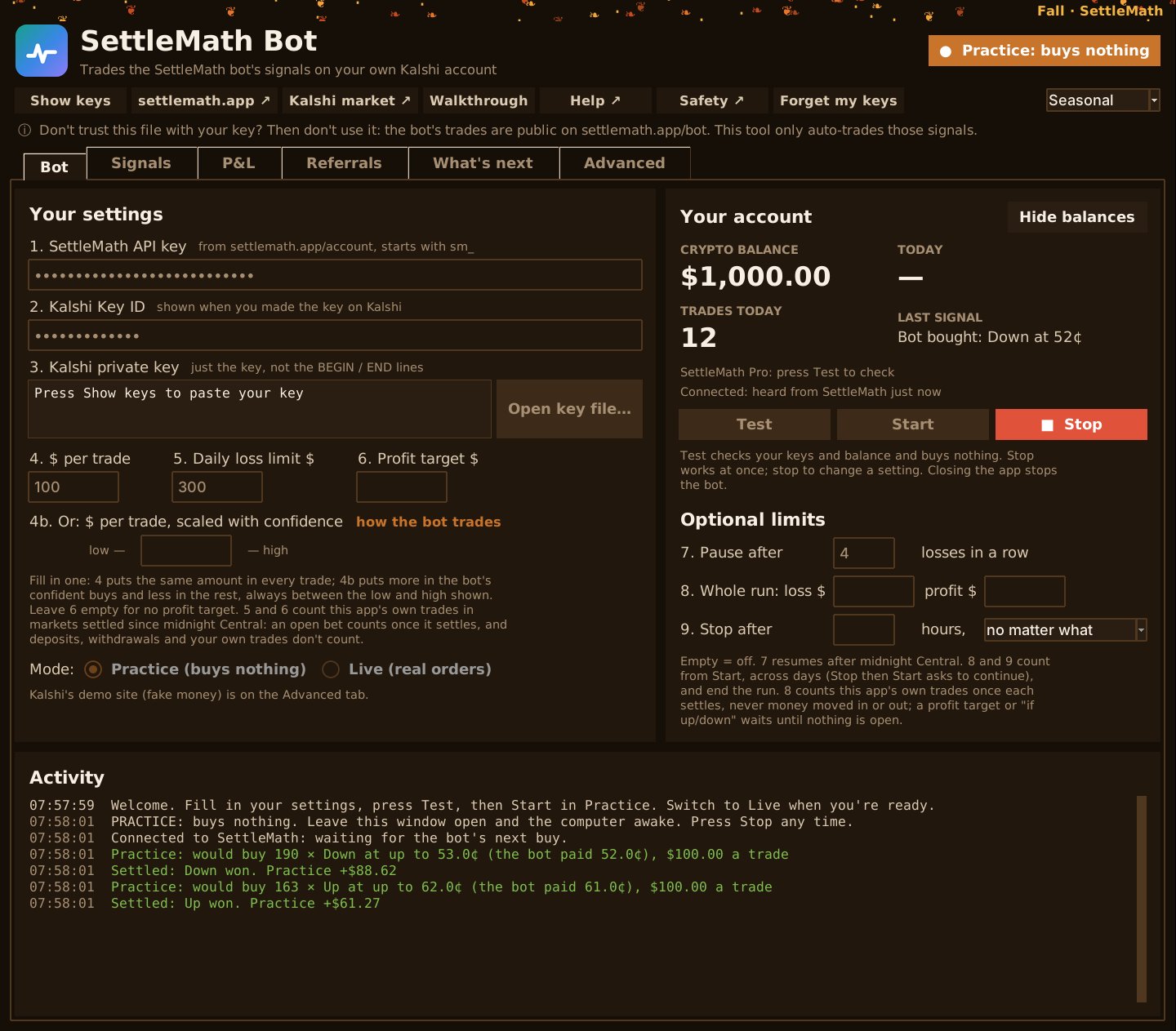
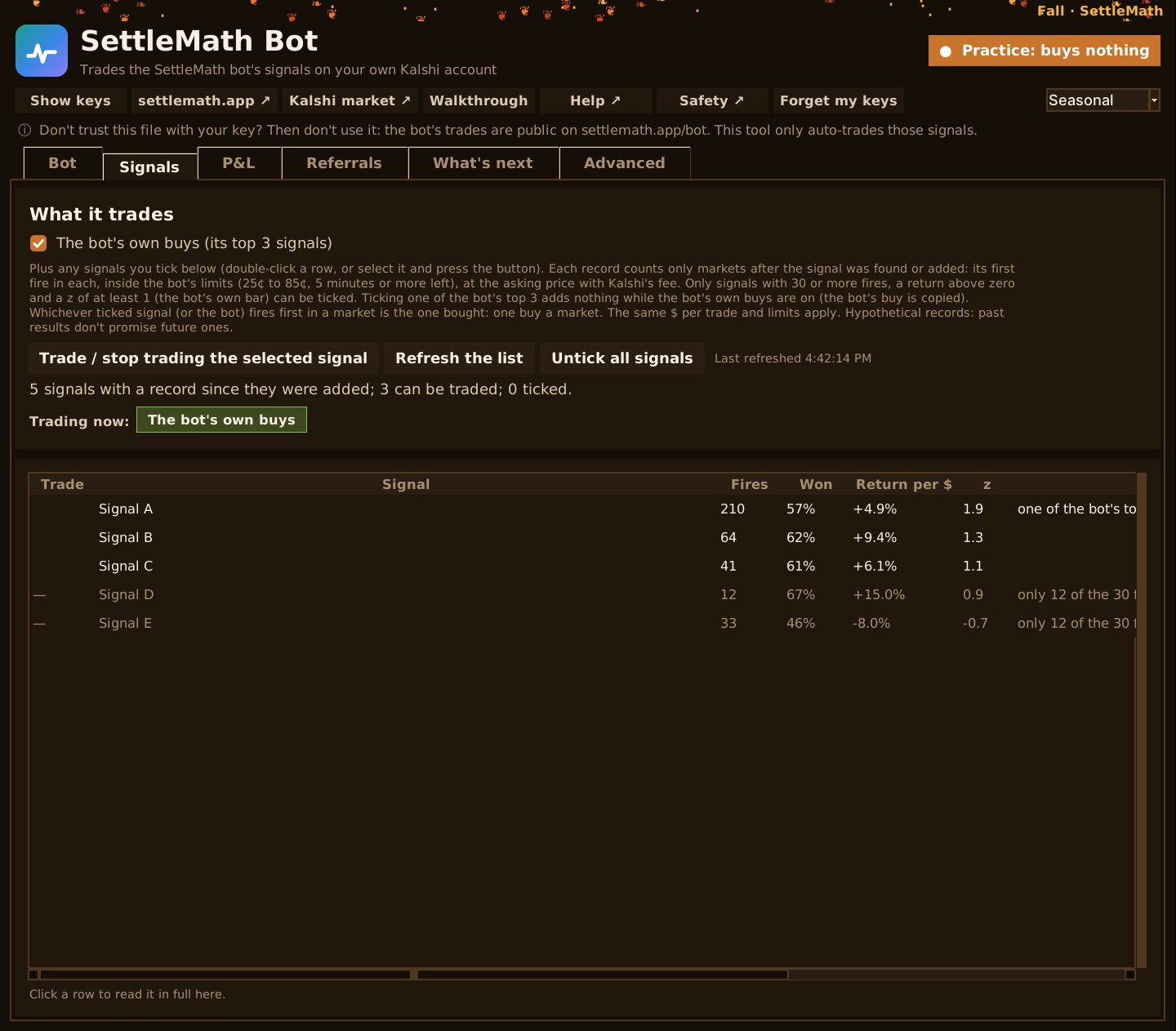
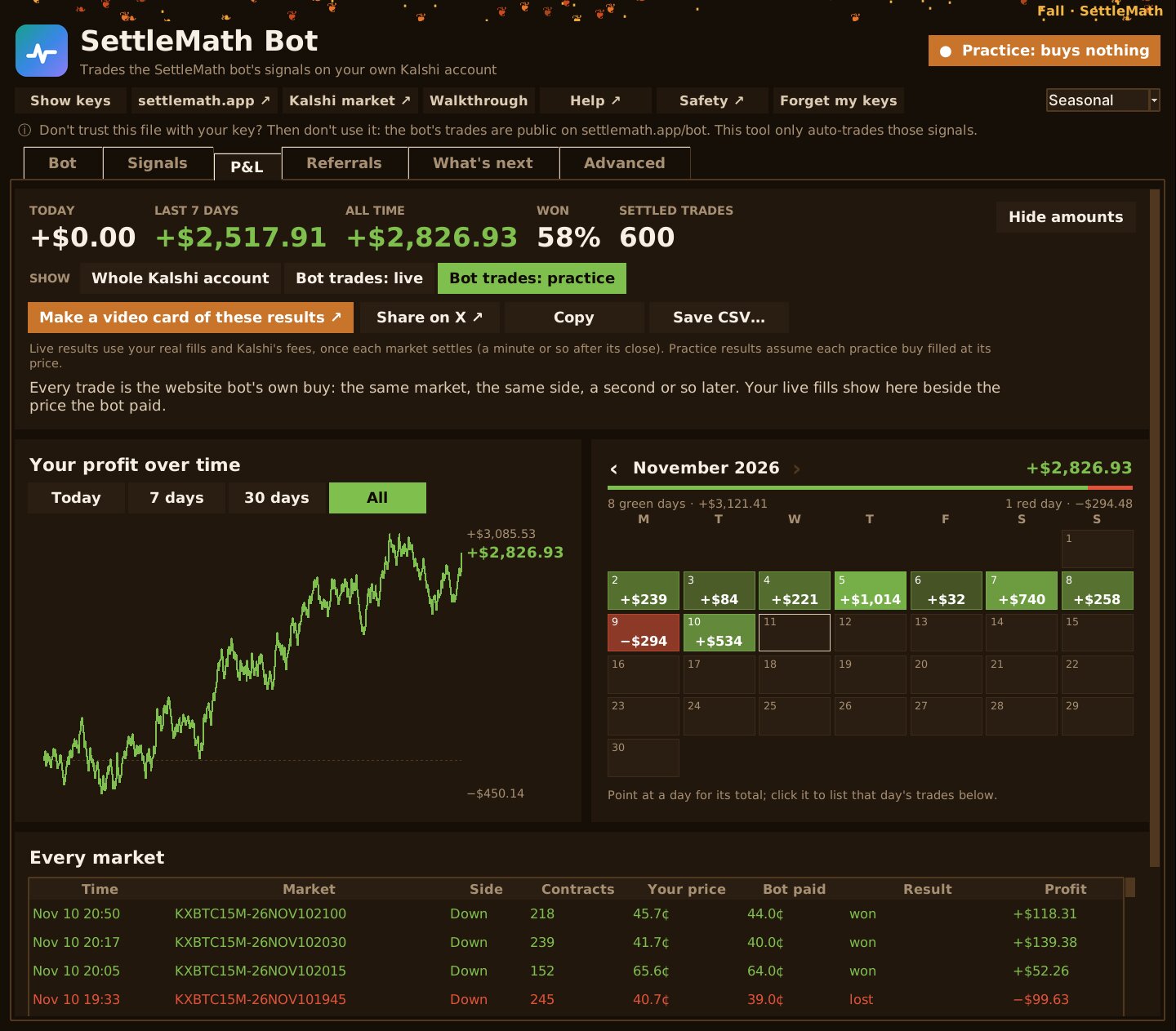
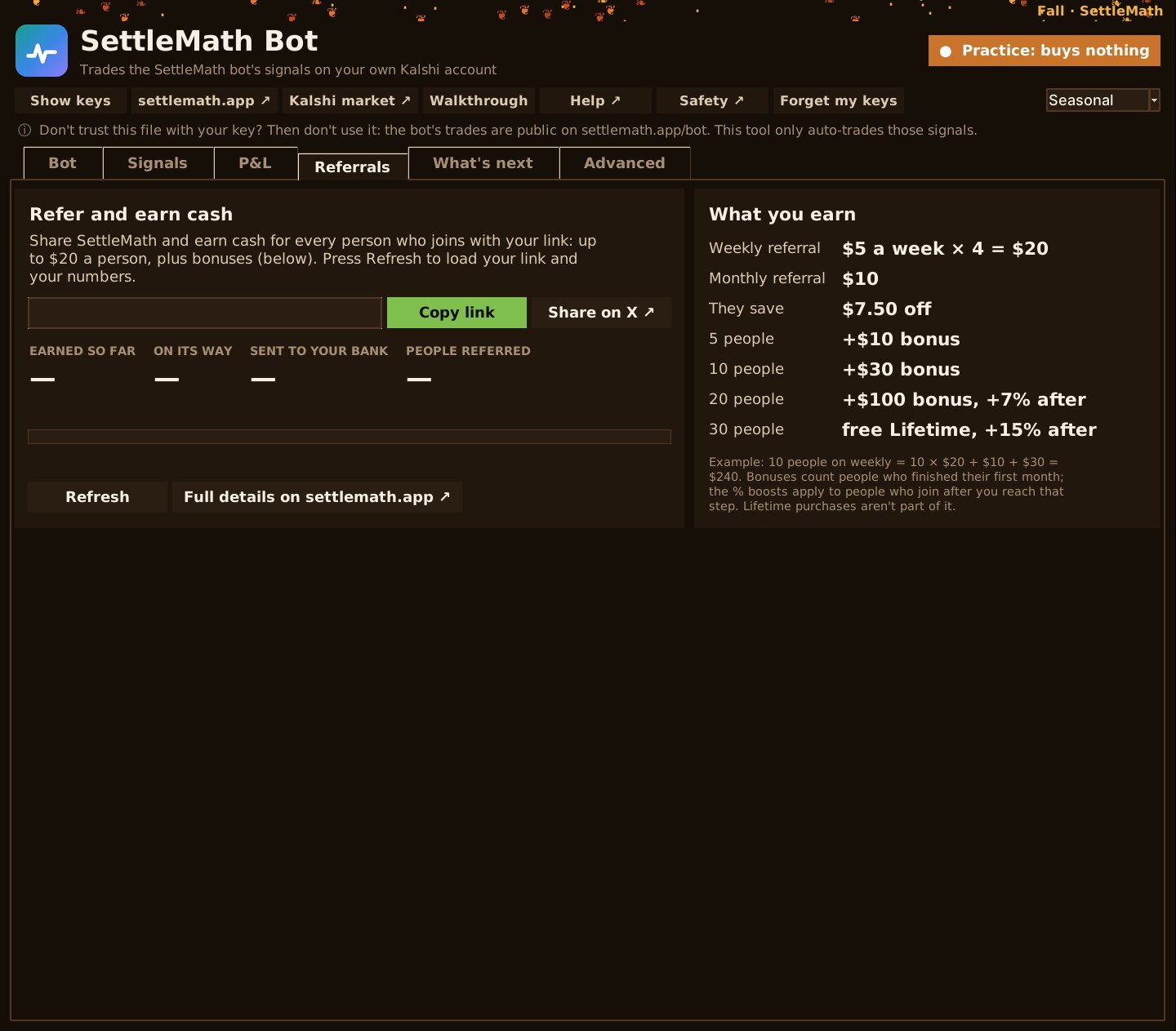
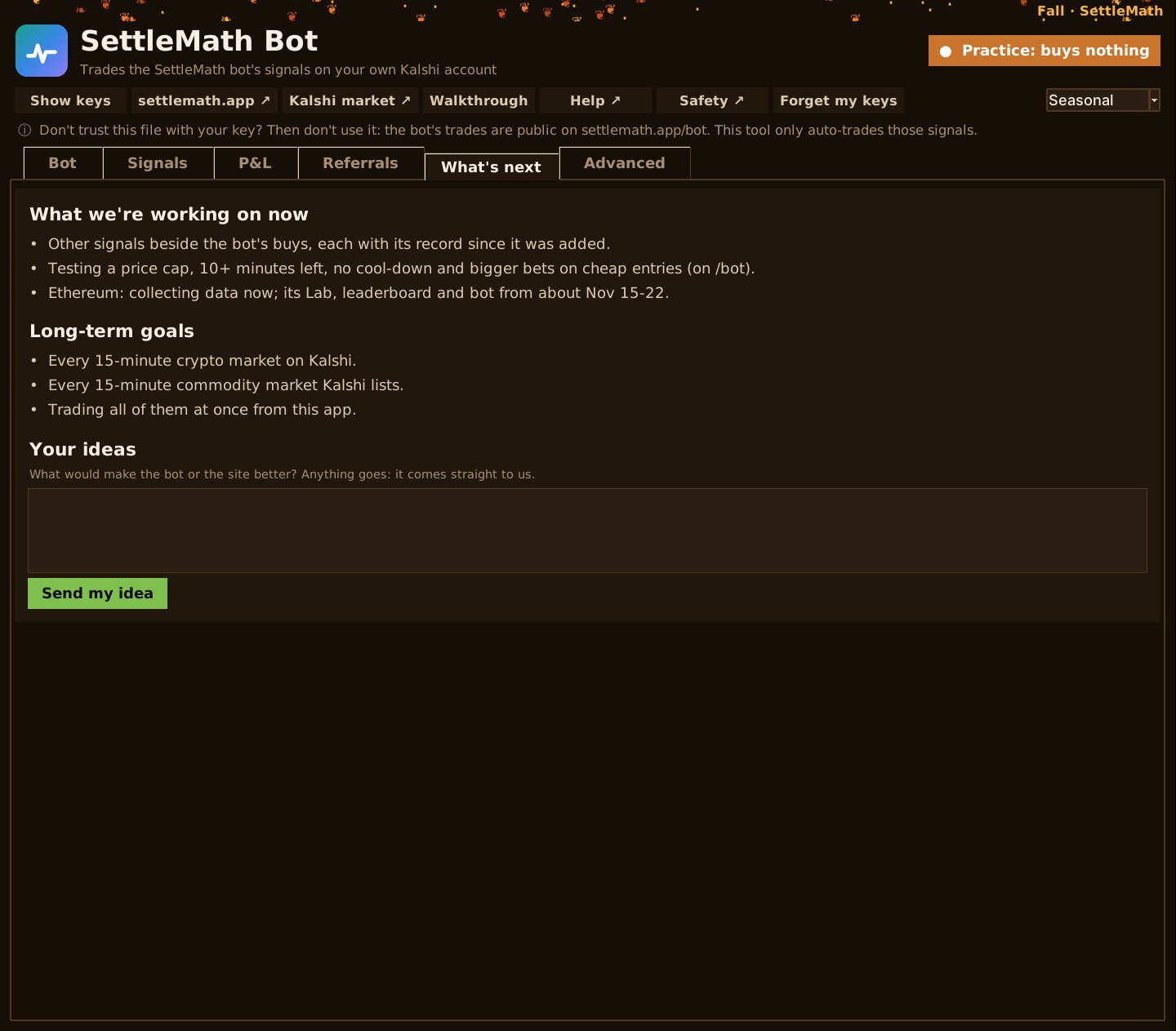
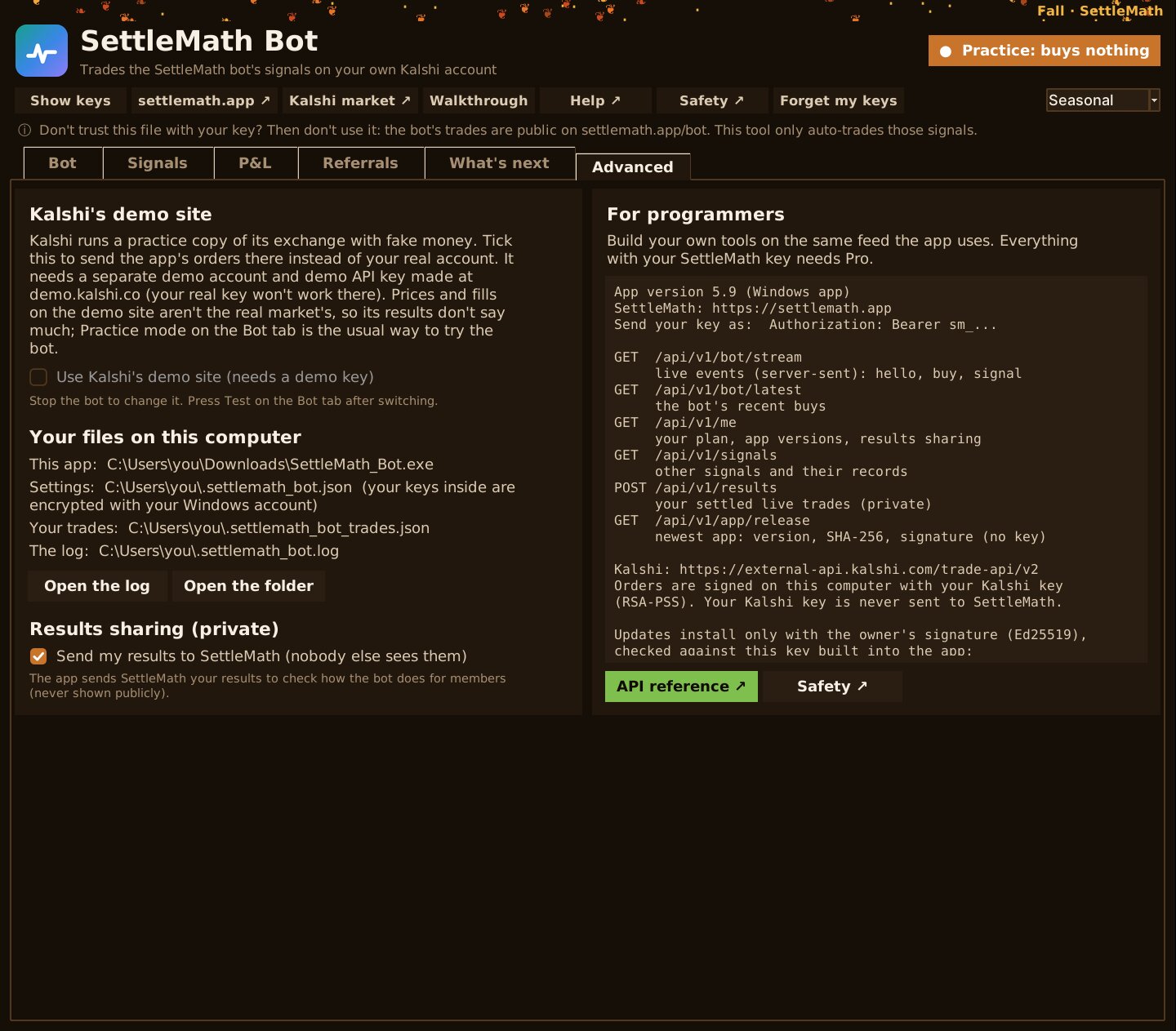
A demo of the real app: pictures of each tab, in Practice. The numbers are the SettleMath bot's simulated record (the signals it fired live, its last 600 trades, Nov 2-10, 2026) re-sized to $100 a trade, with every contract assumed filled: hypothetical, not a member's account, and yours will differ. Nothing here trades.
What you need
- SettleMath Pro (any plan, a 24-hour pass included) See plans
- A Kalshi account with money on it
- A computer that stays on while the bot runs (Windows or Mac)
Set it up in 8 steps
- 1
Make your SettleMath key
On your account page, under Bot API, press Make my API key and copy it somewhere safe (it’s shown once).
- 2
Make a Kalshi API key
On kalshi.com → your profile, open API Keys and press Create New API Key. Kalshi shows a Key ID (copy it) and downloads a private key file (keep it: it’s shown once).
- 3
Put money on your Crypto balance
Orders from a bot on these markets are paid from Kalshi’s Crypto balance, not your main one. On kalshi.com/account/exchange-indexes, move the amount you want the bot to use to Crypto.
- 4
Download the app
Windows appNo Python needed. The easy choice on Windows.Download for Windows (.exe)Pro members only. Get Pro to download.Python versionWindows or Mac. One readable file; needs Python (free, one time) from python.org/downloads (on Windows, tick Add python.exe to PATH on its first screen).Download the Python version (.pyw)Pro members only. Get Pro to download.Windows will warn you about the .exe, and that’s expectedWhen you open it, Windows shows “Windows protected your PC” (your browser may also say the file “isn’t commonly downloaded”). Windows does that for any app that isn’t signed with a paid publisher certificate, which costs hundreds of dollars a year; we don’t have one yet. It doesn’t mean anything was found in the file. To open it, press More info, then Run anyway. You only do this once.
Rather not? Use the Python version: it’s the same app as one readable file, and Windows doesn’t warn about it. Some antivirus tools also flag packaged Python apps by mistake; if yours does, the Python version is the way. Both are built from the same code: see checking the files.
- 5
Open it
Windows app: double-click SettleMath_Bot.exe (More info → Run anyway, the first time). Python version: double-click SettleMath_Bot.pyw; the first time it asks to install free add-ons it needs: press Yes, then open it again. On a Mac: right-click it → Open With → Python Launcher.
The first time, a short walkthrough shows you each step inside the app. It’s under Walkthrough at the top any time.
- 6
Fill in your settings
Paste your SettleMath key and your Kalshi Key ID. For the private key, press Open key file… and pick the file from step 2, or paste just the key: the long block of letters between the
BEGINandENDlines, not those two lines. Then choose your dollars per trade and when to stop for the day (a loss limit, and a profit target if you want one). The app remembers it all and hides your keys; Show keys at the top shows them. - 7
Test, then practice
Press Test: you want two green OK lines (both keys work, and money is on Crypto). Then, with Practice selected, press Start. Each time the SettleMath bot buys, the app shows what it would buy and buys nothing. Watch a few markets and compare with the bot’s buys.
- 8
Go live, stop any time
Press Stop, pick Live, press Start and confirm. Now each of the bot’s buys is placed on your Kalshi account. The app shows your Crypto balance, today’s profit or loss, and every trade; the P&L tab has today, the week and all time with every trade’s result, and you can share it; the Referrals tab shows your link and what you’ve earned. Stop ends it at once; stop to change a setting. Start small.
Keep it running
The app trades only while it’s open and the computer is awake. Set the computer not to sleep while it runs: Windows: Settings → System → Power → Screen and sleep → Never (when plugged in). Mac: System Settings → Battery (or Energy) → Prevent automatic sleeping. Closing the app stops it, and if the computer sleeps it simply misses those markets.
Built-in safety
- It buys only what the SettleMath bot buys, once per market, at the bot’s price plus 1¢ at most, or not at all: the same market and the same side, a second or so after the bot, so your trades match the bot’s.
- It never copies a buy that’s more than 10 seconds old, so if the site or your connection is slow, it waits rather than buying late. If a version has a known problem that matters, it stops trading and asks you to update.
- It checks your amount a trade against your Crypto balance: above the suggested size it warns you, asks you to tick “I’m sure”, and asks once more when you press Start. Next to your daily loss limit it shows how often that limit would have stopped the bot on its recent days.
- Its Today card puts your day next to the bot’s at your amount, and says where any difference came from: markets it didn’t trade (off, stopped or paused), your fills, or your own signals.
- It stops for the day at your loss limit, or at your profit target if you set one. You can also have it pause after a number of losses in a row, stop for good at a loss or profit for the whole run (over several days), or stop after a number of hours (always, only if it's up, or only if it's down). All of these are off unless you set them.
- It never leaves an order waiting on Kalshi: if the app freezes, crashes or is closed, nothing more is bought (what was already bought settles at the end of its market), and it tells you the next time you open it.
- Only one copy runs at a time, so nothing is bought twice. It stops by itself if your Pro ends.
- Your Kalshi key stays on your computer. SettleMath never sees it and never trades for you.
- When there’s a new version, the app says so at the top. From version 5.4 you just press Update now: it downloads the new version from settlemath.app with your key, checks it’s the exact file published here (its SHA-256), and restarts. Stop the bot first; your settings and trades stay.
The full safety page: what the app does with your keys, what can still go wrong, and how to check the files.
Show your results
You can turn your P&L into a video card to post (P&L tab → Make a video card).
Stuck? We’ll help
Ask in our Discord or email support@settlemath.app. For programmers: the full API reference Pro.
Information, not advice. The bot’s record on /bot is simulated at live prices and checked against the real order book; real orders can miss a fast price (then nothing is bought), pay Kalshi’s fee, and lose. Only trade money you can afford to lose. You run the bot on your own account; see the Terms.